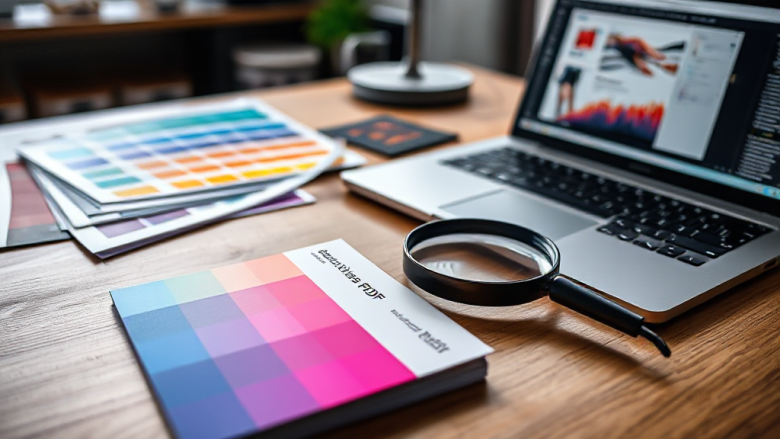
The email came back in four words: “File won’t print. Resend.” I’d spent a week on that business card. The layout was clean, the type was kerned, and the client had approved it twice. What I didn’t know was that the PDF sitting on my desktop was never going to survive contact with a printing press. This beginner guide to print design is the map I wish someone had handed me that afternoon, because the truth is that print doesn’t fail at the design stage. It fails at the handoff, in a chain of technical steps most screen designers never see.
The File Failed Because Print Is a Physical Process
On screen, your design is light. On paper, it’s ink, pressure, and a machine the size of a small car. That difference explains almost every rejection you’ll ever get.
A digital layout is measured in pixels, which are abstract. A printed layout is measured in millimetres, and every millimetre has to be accounted for before the press starts running. When a printer says your file is “not print ready,” they usually mean one of a handful of things: the artwork doesn’t extend far enough past the trim line, the colours are built from screen values that ink can’t reproduce, or the resolution is too low to hold up under a magnifying glass.
None of that is obvious when you’re staring at a beautiful artboard. So treat this beginner guide to print design as a walk through the production chain, one stage at a time, using a single business card as the example. By the end you’ll know why each stage exists and what it wants from you.
Stage One: Setting Up the Document Before You Draw Anything
Most print problems are born in the first five minutes, long before you place a single element.
Start with the finished size. A standard business card is 85 by 55 millimetres in most of Europe, though regional standards vary, so confirm the dimensions with whoever is printing it. Then add the two zones that screen designers never think about.
Bleed is extra artwork that extends beyond the finished edge, usually 3 millimetres on every side. It exists because trimming isn’t perfect. The guillotine can drift by a fraction of a millimetre, and if your background colour stops exactly at the trim line, a thin white sliver appears along the edge. Bleed gives the blade room to wander without exposing paper.
Safe margin is the opposite idea. Keep text and logos at least 3 to 5 millimetres inside the trim line, because the same blade that drifts outward can also cut inward. Anything sitting near the edge risks being clipped.
Set your document up with bleed and margins from the start. Adding bleed later means resizing backgrounds and repositioning everything that touches an edge, which is exactly the kind of rework that eats a weekend.
Stage Two: Colour, and Why Your Screen Is Lying to You
Here’s the part that surprises almost everyone. The colours you see on a monitor are made of light. The colours a press lays down are made of pigment. They are not the same system, and they can’t be converted perfectly.
Your screen uses RGB, where red, green, and blue light combine to make white. A printing press uses CMYK, where cyan, magenta, yellow, and black inks combine to make dark, muddy colours. Some vivid RGB shades, particularly electric blues, neon greens, and bright oranges, simply have no CMYK equivalent. They’ll print duller, and no amount of tweaking will fully fix it.
The practical move is to design in CMYK from the beginning when you know the job is going to print. If you’ve already built everything in RGB, convert before exporting and then check the result carefully, because the shift can be dramatic. Deep saturated blues are the usual casualty.
There’s a second colour decision hiding here. A colour can be built from a mix of the four process inks, or it can be a spot colour, a pre-mixed ink loaded into its own press unit. Spot colours are used for brand colours that must match exactly, and for metallic or fluorescent finishes. They cost more, so they’re usually reserved for one accent rather than a whole design.
One more trap: rich black. If you set a large black area to 100 percent of all four inks, you get a dense, expensive, slow-drying patch that can smudge. Most printers prefer a rich black built from something like 60 percent cyan, 40 percent magenta, 40 percent yellow, and 100 percent black for large areas, and plain 100 percent black for small text.
Stage Three: Type, Images, and Resolution That Actually Holds Up
Screens forgive low resolution. Paper doesn’t.
Images destined for print generally need to be around 300 pixels per inch at their final placed size. A photo that looks crisp on a website at 72 pixels per inch will look soft and slightly blurry on a card, because the printed dot is far smaller than a screen pixel. If you have to enlarge an image, you’re reducing its effective resolution, so check the placed size rather than the file size.
Vector artwork, meaning logos and shapes built from mathematical paths rather than pixels, scales infinitely and should always be used for anything with a hard edge. If your logo only exists as a JPEG, ask for the original vector file. It will save you a headache now and a worse one later.
Type needs its own care. Fonts must be embedded in the final PDF, or the printer’s system will substitute something else and your careful spacing will collapse. Outline your text only as a last resort, because outlined text can’t be edited and small outlined type sometimes fills in when printed.
Also watch the weight. Hairline strokes that look elegant on a bright monitor can disappear entirely when ink spreads slightly on uncoated paper. If you’re printing small type on absorbent stock, go a touch heavier than feels necessary.
Stage Four: Exporting, Proofing, and the Proof That Matters
This is where the production chain becomes visible, and where that rejected file from the opening was actually born.
Export as a print-ready PDF, not a JPEG and not a screenshot. A PDF carries the fonts, the vector paths, the colour definitions, and the page geometry in one package. When you export, choose a preset intended for print rather than for screens, and make sure bleed and crop marks are included.
Then the file goes to the printer, and a few things happen that you don’t control. It gets pre-flighted, a technical check that flags missing fonts, low-resolution images, and colours outside the printable range. It may be imposed, meaning multiple copies are arranged on a large sheet so they can be printed and cut together. And it gets turned into plates or a digital master, depending on the process.
Before any of that runs at scale, you should see a proof. A digital proof is a PDF or a laser print that shows layout and position but not accurate colour. A contract proof is a calibrated physical print that represents what the press will actually produce, and it’s the one you sign off on. Look at it under proper light, not on a phone screen. Check the trim, the margins, the colour of anything brand-critical, and the small type. Once you approve a contract proof, you own the result.
Stage Five: Paper, Finish, and the Pre-Flight Checklist
Paper changes how everything reads. A heavy, coated stock makes colours pop and feels substantial in the hand. An uncoated stock feels more tactile and natural but absorbs ink, dulling colours and softening fine detail. Thickness is usually described in grams per square metre, and for a business card something in the 300 to 400 range feels solid without being stiff as a tile.
Finishes matter too. A matte laminate softens reflections and feels premium. A gloss laminate makes colours more vivid but shows fingerprints. Spot UV adds a glossy raised layer over a matte background, which is a cheap way to make one element stand out. Foiling and embossing cost more and are usually worth it only when the design leans on them deliberately.
Before you send anything, run this short check. It catches the overwhelming majority of rejections.
- Document size matches the finished size, with 3 millimetres of bleed on every side.
- All text and logos sit inside the safe margin.
- Colours are CMYK, with rich black built properly and no accidental spot colours.
- Images are around 300 pixels per inch at their placed size, and logos are vector.
- Fonts are embedded, or text is outlined as a deliberate choice.
- The PDF includes bleed and crop marks, and you’ve reviewed a proof.
Questions Beginners Ask About Print Design
Why did my printer reject a file that looked fine on my screen?
Because a screen preview doesn’t show bleed, colour space, resolution, or embedded fonts. The file can look perfect and still be missing the technical information the press needs. Pre-flighting catches those gaps, which is why rejections usually cite missing bleed or low-resolution images rather than anything visual.
Can I design in RGB and convert to CMYK at the end?
You can, but expect colour shifts, especially in vivid blues, greens, and oranges. Converting early lets you choose colours that survive the translation, which is far less painful than explaining to a client why their brand blue came back muted.
What’s the difference between a digital proof and a contract proof?
A digital proof shows layout and positioning but isn’t colour accurate. A contract proof is a calibrated physical print that represents the final press output, and approving it transfers responsibility for the result to you. Always ask which one you’re being sent before you sign anything off.
How much bleed do I actually need?
Three millimetres per side is the common standard and covers normal trimming drift. Larger formats sometimes want more, so confirm with your printer. Adding extra bleed is cheap; discovering you needed it after the job is printed is not.
Print rewards preparation in a way screens never do. Once you understand that your file is a set of instructions for a physical machine, the jargon stops being intimidating and starts being useful. Learn bleed, colour, resolution, and proofing, and you’ll stop getting those four-word rejection emails.